
Collaborate Feature
The Collaborate feature in ioChem-BD Create enables seamless teamwork on computational chemistry research projects. Share your projects with colleagues, manage access permissions, and track all collaboration activities in real-time.
Overview
Collaborate transforms how research teams work together by providing:
- Flexible permission control - Define exactly what each collaborator can do with your shared projects
- Complete transparency - Track every action with detailed collaboration messages
- Effortless teamwork - Work simultaneously on the same projects without version conflicts
Accessing the Collaborate Tab
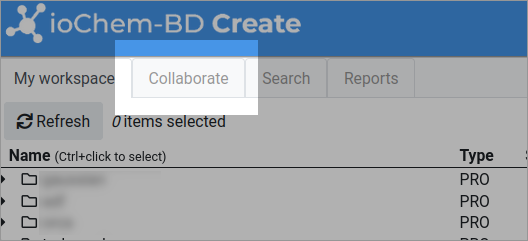
To access shared projects, click on the Collaborate tab in the main navigation frame. This tab displays all projects that other users have shared with your group, organized by research group and owner.
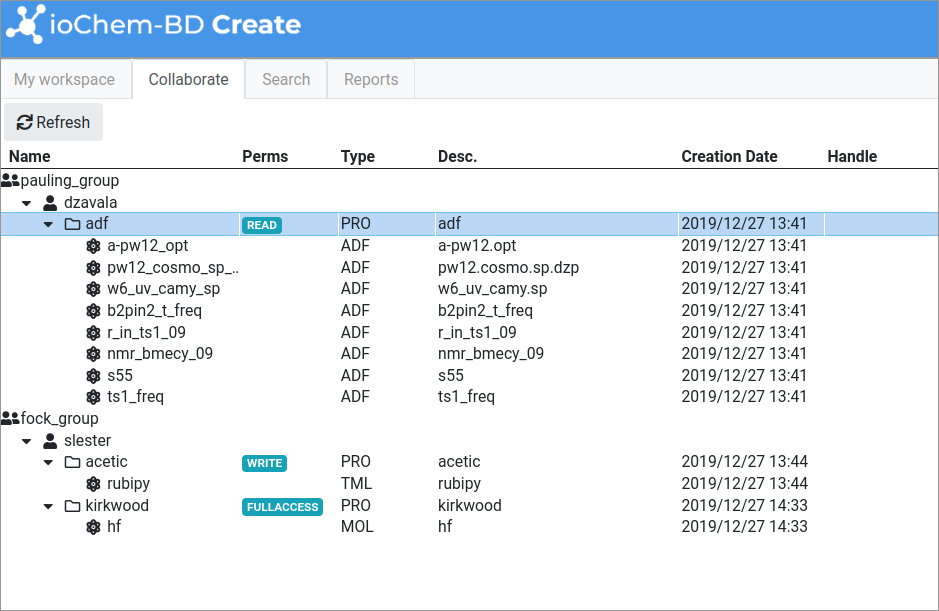
The Collaborate tree is organized hierarchically:
- Research Groups - Top-level organization (e.g., "Computational Chemistry Lab")
- Owners - Individual users who have shared projects with you
- Shared Projects - Projects available for collaboration
- Calculations - Individual calculations within shared projects
Sharing Your Projects
To share one of your projects with collaborators:
- Navigate to your project in the My workspace tab
- Select the project you want to share
- Click the Share button in the context menu or item details
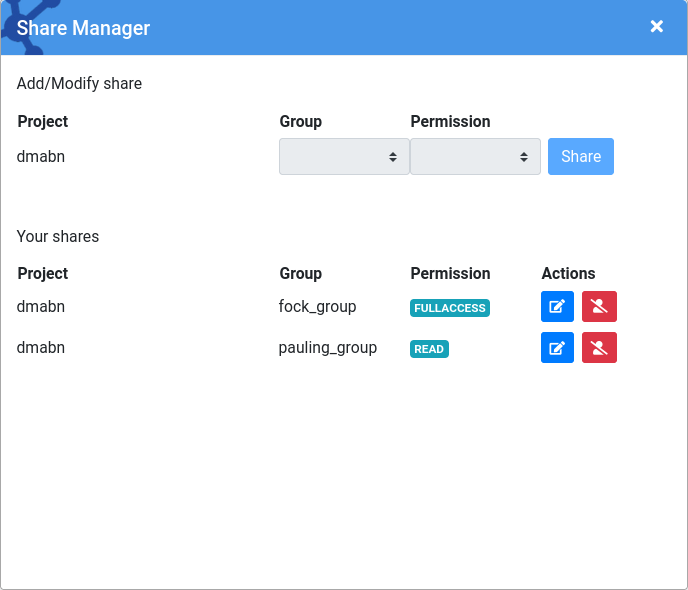
- Choose collaborator user groups from the list
- Assign appropriate permissions for each user group
- Click Save to activate sharing
Permission Levels
When sharing a project, you can assign different permission levels to control what collaborators can do:
READ
Collaborators with READ permission can:
- View project structure and calculations
- Download calculation files
- View 3D structures and results
- Generate reports
They cannot:
- Create, modify, or delete projects or calculations
- Change project metadata
- Publish to Browse module
WRITE
Collaborators with WRITE permission can do everything READ users can, plus:
- Create new subprojects and calculations
- Upload new calculations
- Modify project and calculation metadata
They cannot:
- Delete the shared project itself
- Publish to Browse module
FULL ACCESS
Collaborators with FULL ACCESS permission have full control:
- All WRITE access capabilities
- Delete any element, excluding the shared project
They cannot:
- Delete the shared project itself
- Publish to Browse module
WARNING
Be careful when granting FULL ACCESS, as these users have complete control over your shared project.
DANGER
Published projects and collections cannot be modified or removed, regardless of permission level. Once a project has been published to the Browse module, it becomes read-only for all users including the owner.
Working with Shared Projects
Once a project is shared with you, it appears in your Collaborate tab. You can work with shared projects similarly to your own projects:
Viewing Shared Content
- Navigate to the Collaborate tab
- Expand the research group and owner to see shared projects
- Click on any project or calculation to view its details
The Item Actions and Item Details frames will display the selected element's information, just as they do for your own projects.
Adding Content to Shared Projects
If you have WRITE or FULL ACCESS permissions:
- Select the shared project where you want to add content
- Use the upload interface to add new calculations
- Or create subprojects using the Create project button in Item Details
All content you add will be visible to other collaborators immediately.
Modifying Shared Content
Depending on your permissions, you can modify shared content:
- Select the project or calculation you want to modify
- Edit fields in the Item Details frame
- Click Modify to save your changes