
Supervise Feature
The Supervise feature in ioChem-BD enables research group leaders, principal investigators, or designated supervisors to oversee and manage the work of their team members.
Supervisors can access all content from supervised users, assist with publication workflows, and manage published collections on their behalf.
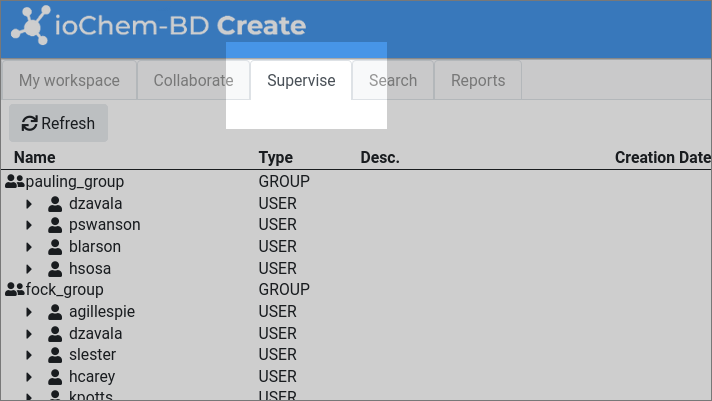
Overview
The Supervise feature provides research group leaders with enhanced oversight and control capabilities:
- Complete visibility - Access all projects and calculations from supervised users
- Publication assistance - Publish content on behalf of supervised users
- Collection management - Manage published collections in Browse module
- Administrative control - Lift embargoes, generate reviewer links, and update metadata
Setting Up Supervision
Supervision relationships are configured in the Browse module by system administrators. The supervisor assignment is performed on the user edition page.
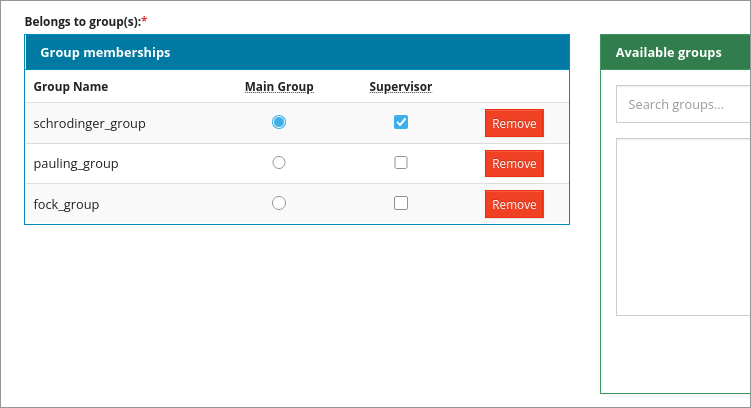
To assign a supervisor to a user:
- Navigate to the Browse module administration panel.
- Access the Users management section.
- Select the user who will have the supervisor role.
- Click Edit to open the user edition form.
- In the Belongs to group secton, mark the Supervisor checkbox to select the designated supervisor for a specific group.
- Click Save to activate the supervision relationship.
Once configured, the supervisor will immediately gain access to all the supervised users group content in the Create module.
TIP
A supervisor can oversee multiple users and user groups.Supervision relationships can be modified at any time by administrators.
Accessing Supervised Content
Supervisors access supervised users' content through a dedicated interface in the Create module. When logged in as a supervisor, you'll see an additional section displaying all supervised users organized by research group.
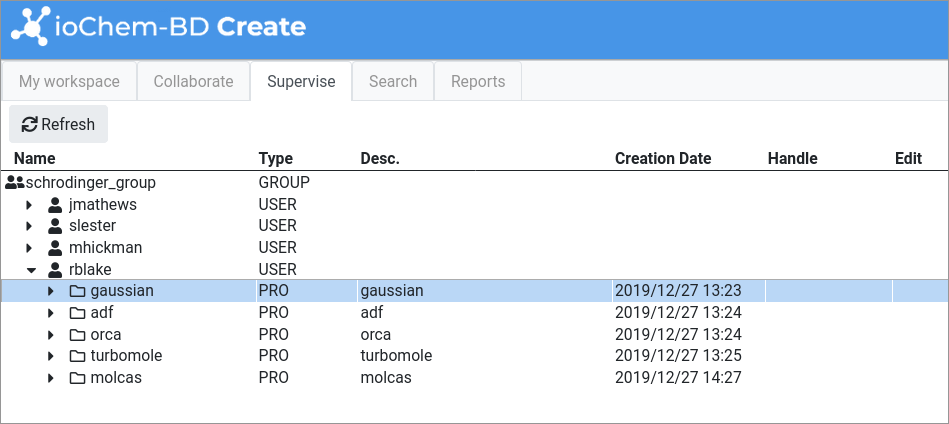
The supervised content view is organized hierarchically:
- Research Groups - Top-level organization of your supervised users
- Supervised Users - Individual users under your supervision
- Projects - All projects belonging to each supervised user
- Calculations - Individual calculations within projects
To work with supervised content:
- Navigate to the supervised users section in Create
- Expand the research group to see supervised users
- Expand a user to see their complete project hierarchy
- Click on any project or calculation to view its details
The Item Actions and Item Details frames will display the selected element's information, just as if you were the owner.
Supervisor Permissions
Supervisors have enhanced permissions that exceed standard collaboration access. A supervisor has all the capabilities of FULL ACCESS collaboration, plus additional administrative powers:
Standard FULL ACCESS Capabilities
- View all project structures and calculations
- Download calculation files
- View 3D structures and results
- Generate reports
- Create new subprojects and calculations
- Upload new calculations
- Modify project and calculation metadata
- Delete any element, excluding shared entities
Additional Supervisor Capabilities
- Publish on behalf of supervised users - Initiate publication workflows using the supervised user's identity
- Access Browse collection edition page - Manage published collections in the Browse module
- Define publication metadata - Edit collection descriptions, keywords, and other metadata
- Lift embargoes - Make embargoed collections publicly accessible before scheduled date
- Generate reviewer links - Create special access URLs for peer review processes
WARNING
With great power comes great responsibility. Supervisors should use their elevated permissions ethically and in accordance with institutional policies.
DANGER
Published projects and collections cannot be modified or removed, regardless of permission level. Once a project has been published to the Browse module, it becomes read-only for all users including the owner and supervisor.
Publishing on Behalf of Supervised Users
One of the most powerful supervisor capabilities is the ability to publish content on behalf of supervised users. This is particularly useful when:
- Assisting less experienced researchers with the publication process
- Ensuring quality control before public release
- Meeting publication deadlines when the user is unavailable
- Streamlining group-wide publication workflows
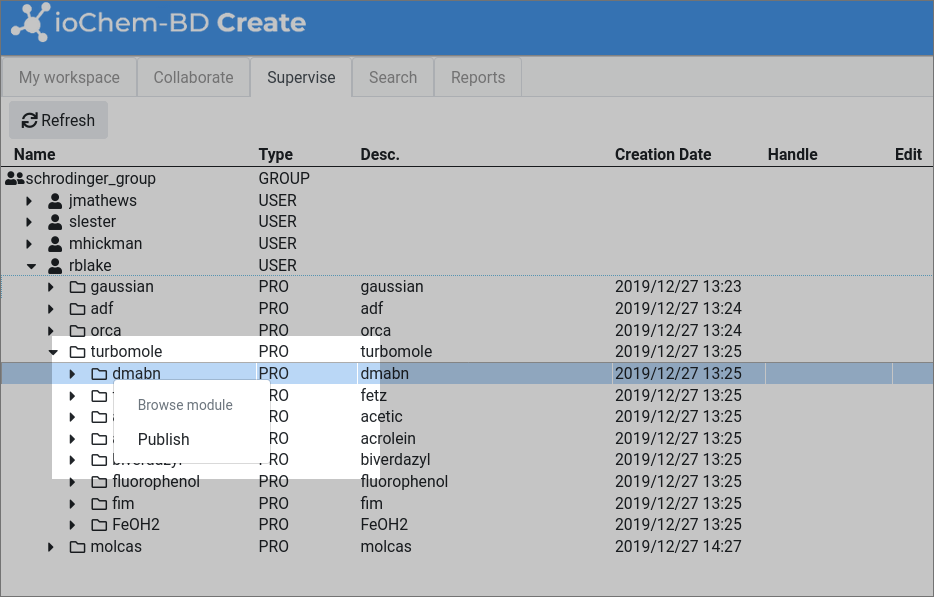
To publish on behalf of a supervised user:
- Navigate to the supervised user's content
- Select the project or calculation to publish
- Right-click and select Publish on behalf from the context menu
- The publication form will open with the supervised user's identity
- Complete the publication workflow as you would for your own content
- The publication will be attributed to the supervised user, not the supervisor
TIP
When publishing on behalf, all publication metadata (author, submitter, etc.) will reflect the supervised user's information, maintaining proper attribution.
Managing Published Collections
Supervisors can access and manage published collections in the Browse module for all supervised users. This includes full administrative control over collection settings and visibility.
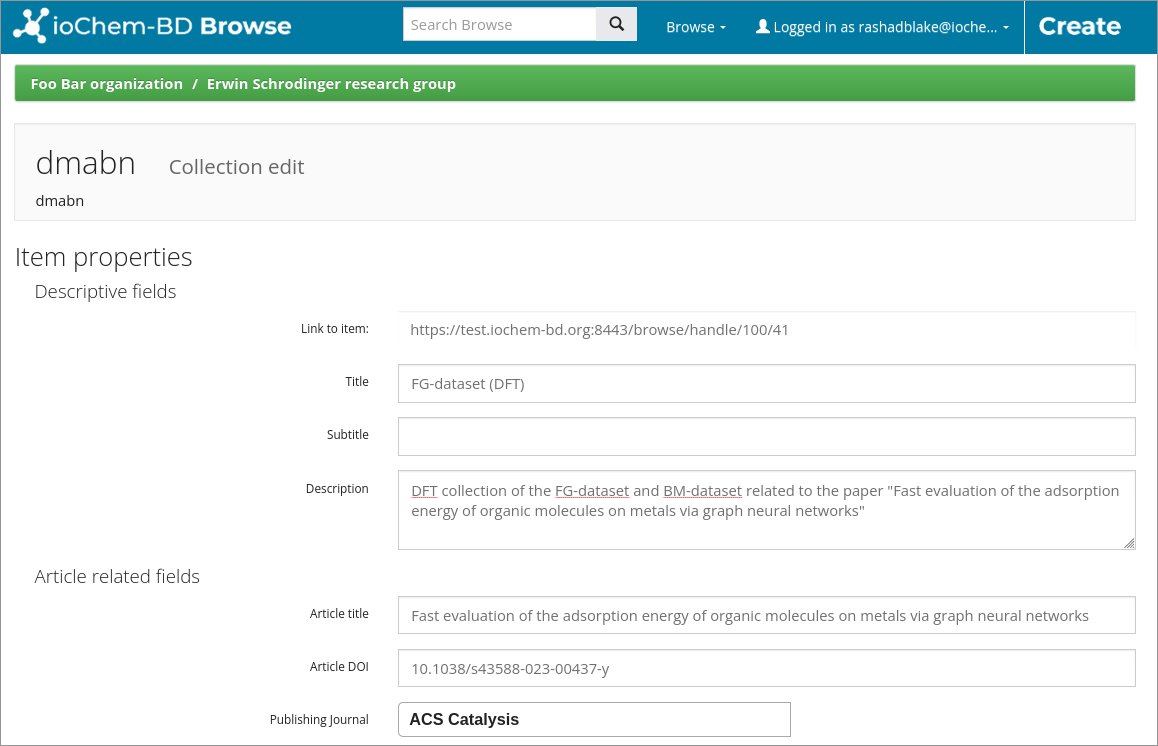
Available collection management actions:
Edit Collection Metadata
- Update collection title and description
- Update related publications and funding information
Embargo Management
Supervisors can control embargo settings:
- View current embargo status
- Lift embargoes immediately when appropriate
Reviewer Access
Generate special access links for peer review:
- Share embargoed content with selected reviewers
- Track reviewer access activity
To access collection management:
- Log in to the Browse module
- Navigate to the supervised user's collections
- Select the collection to manage
- Click Edit Collection icon to access the management interface
- Make necessary changes
- Click Save to apply updates
TIP
All actions performed by supervisors are logged for audit purposes, maintaining transparency and accountability.
Best Practices for Supervisors
When working with supervised users' content:
- Communicate clearly - Inform supervised users when you access or modify their content
- Respect autonomy - Use publish-on-behalf sparingly; encourage users to publish independently when possible
- Maintain quality - Review content before publication to ensure it meets institutional standards
- Document actions - Keep records of significant changes or publications performed on behalf
- Train users - Use supervision as an opportunity to mentor users on proper workflows
- Follow policies - Adhere to your institution's data management and publication policies
Supervision vs. Collaboration
While both features enable teamwork, they serve different purposes:
| Feature | Supervision | Collaboration |
|---|---|---|
| Relationship | Hierarchical (supervisor/supervised) | Peer-to-peer |
| Setup | Configured in Browse by admin | Initiated by project owner |
| Scope | All user's group content | Specific shared projects |
| Permissions | FULL ACCESS + publish on behalf + Browse management | READ, WRITE, or FULL ACCESS |
| Use Case | Group oversight, quality control | Project-specific teamwork |
| Attribution | Can publish as supervised user | Always publishes as self |
Choose Supervision when you need comprehensive oversight of a user's research output. Choose Collaboration when working together on specific projects as peers.