
Browse module walkthrough
The Browse module is the public face of ioChem-BD: a web portal where the datasets published from the Create module become discoverable, browsable and citable for everyone. It is built on the DSpace repository platform.
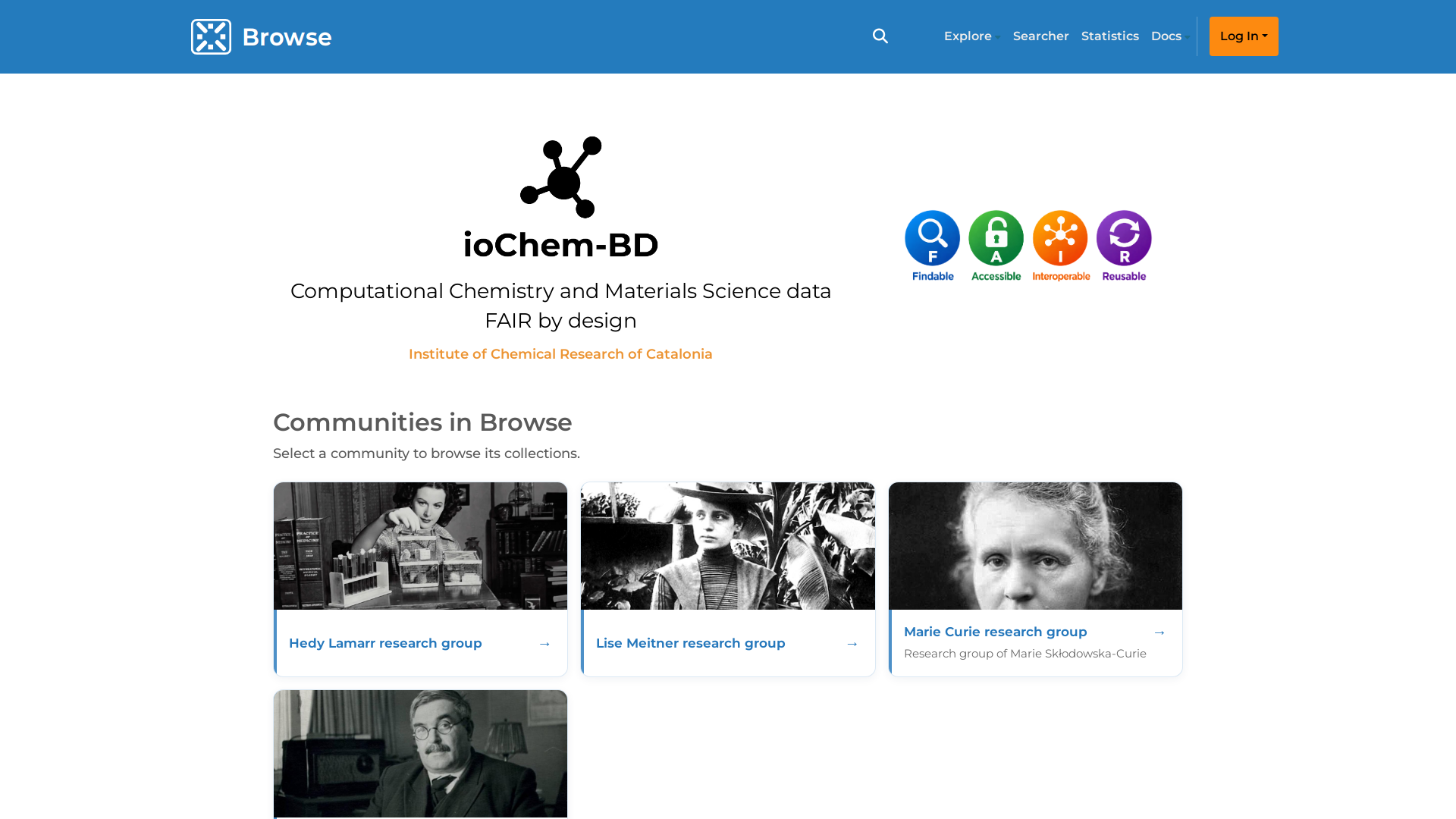
The home page combines:
- A banner describing the portal
- The cards of the Communities in Browse, usually one per research group
- The Recent Submissions section with the latest published items (hidden when there are none)
The top navigation bar gives access to the main areas: the Browse logo (home page), the search icon, Explore (communities and indexes by author, date and title), Searcher (the search page), Statistics and Docs, the user menu and the Create shortcut.
Logging in
Most of the Browse module is public. Logging in with your ioChem-BD account (the same centralized account as Create) adds personal areas such as MyDSpace and your researcher profile. Click Log In in the user menu and use your regular credentials. On the first login you are asked to accept the End User Agreement.
Communities and collections
Published data is organized in three levels:
- Communities: one per research group, created by the administrator.
- Collections: one per published project.
- Items: one per published calculation, report or asset.
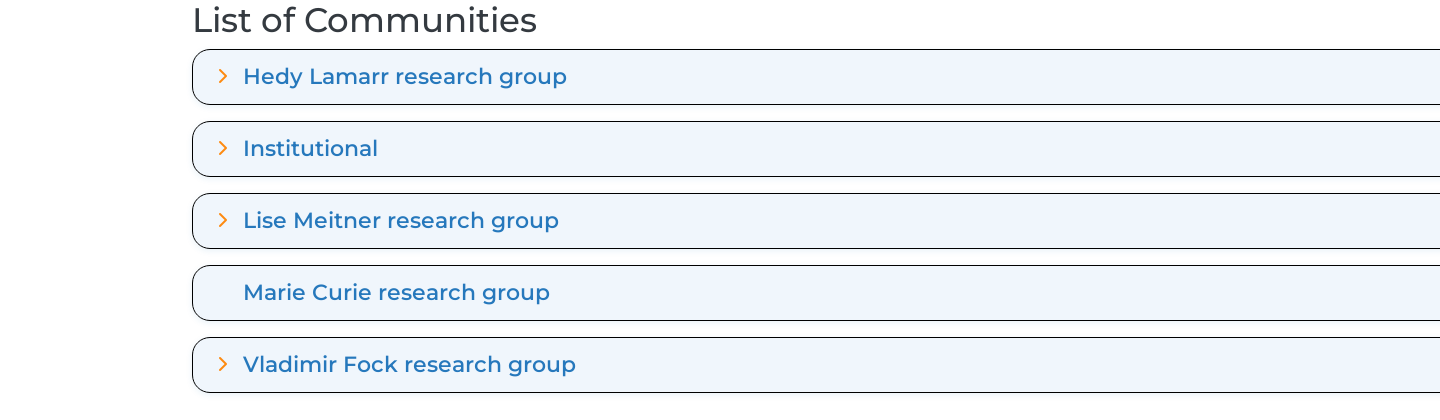
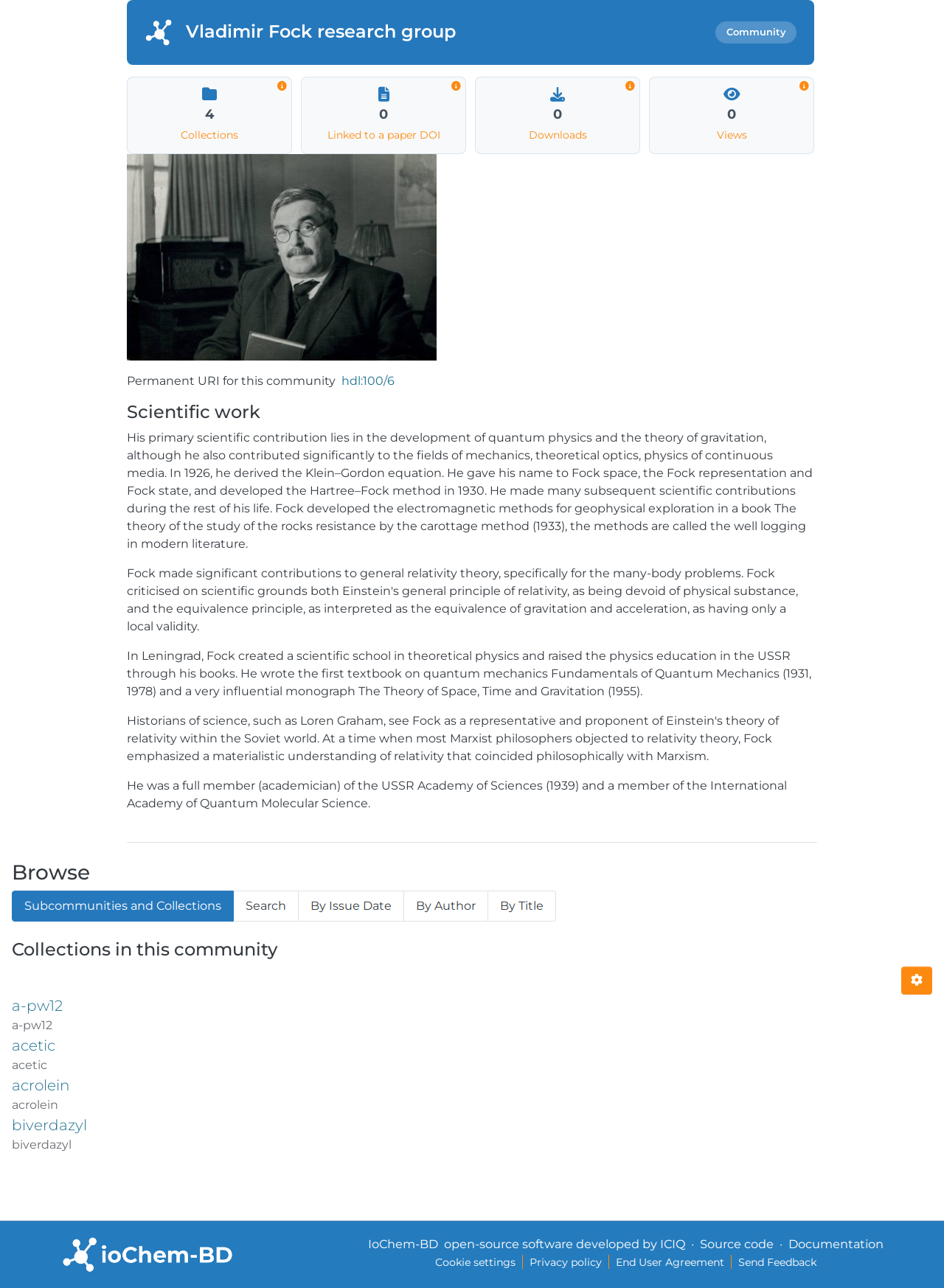
Open a community to see its collections and the items inside.
Searching data
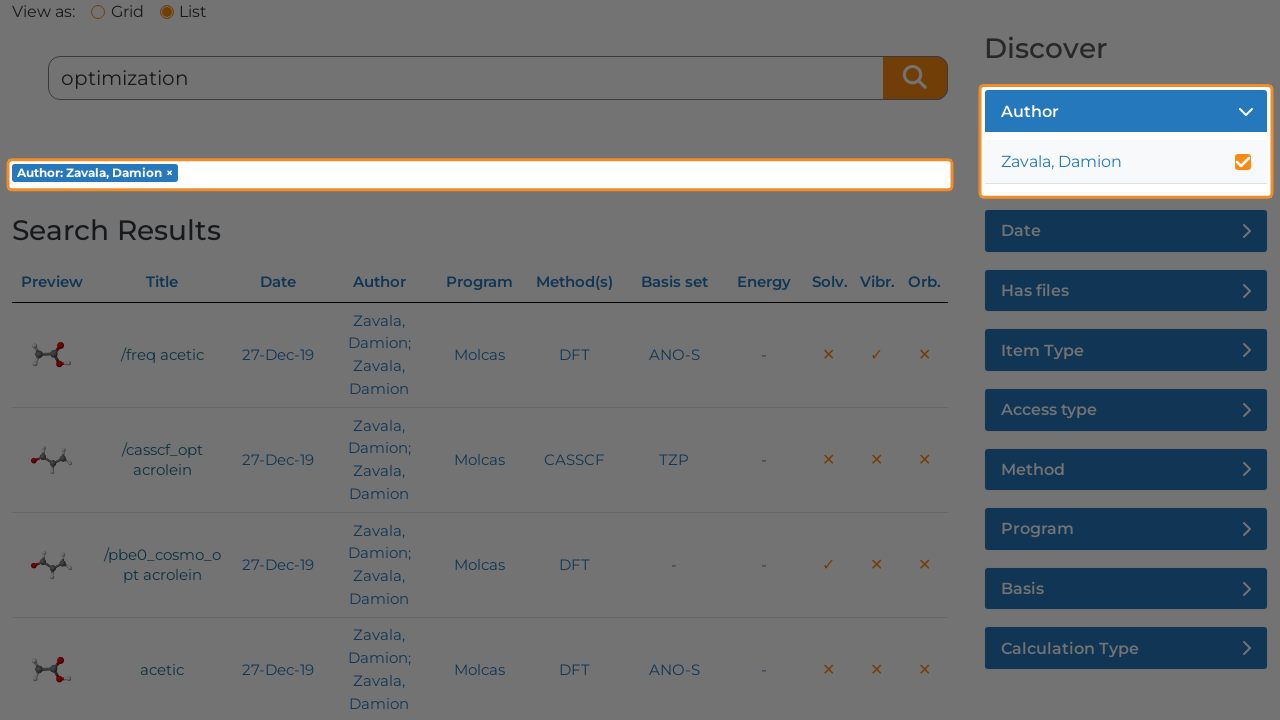
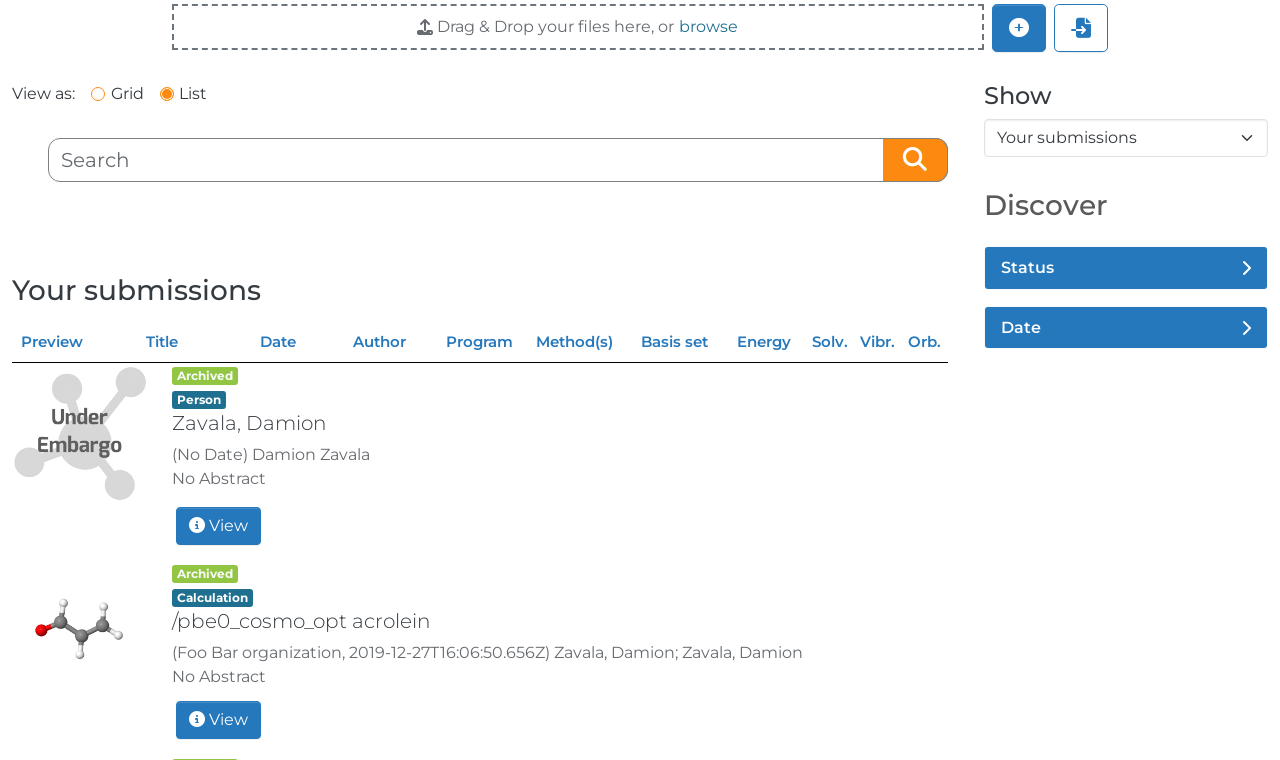
The Searcher page searches all public content. Queries can be refined with the chemistry-aware facets on the results page:
- Author, Date, Access type and Item Type
- Program: the computational chemistry package used
- Method(s): DFT, CASSCF, CASPT2, ...
- Basis set, Energy, Solv., Vibr., Orb.
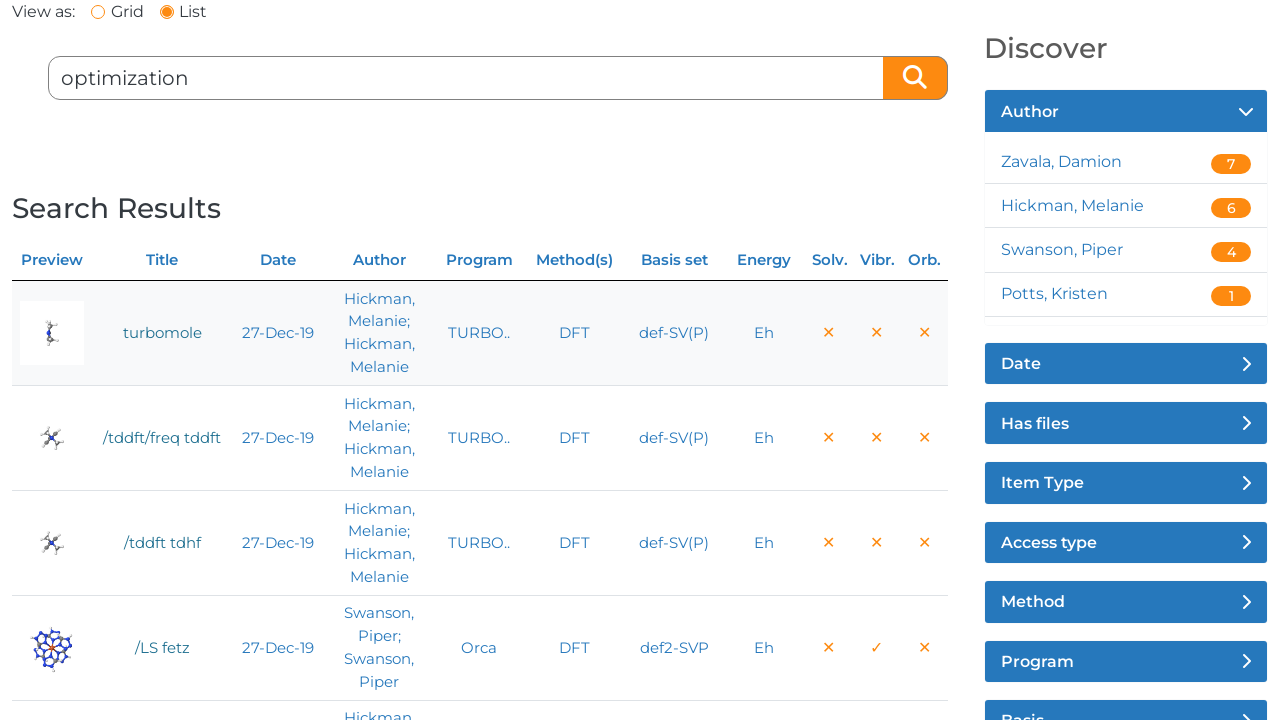
Results can be displayed as a grid or a list, and every facet narrows the query with a single click.
The calculation item page
Every published calculation has its own item page showing the metadata table, the file section and, when available, a 3D molecular structure preview.
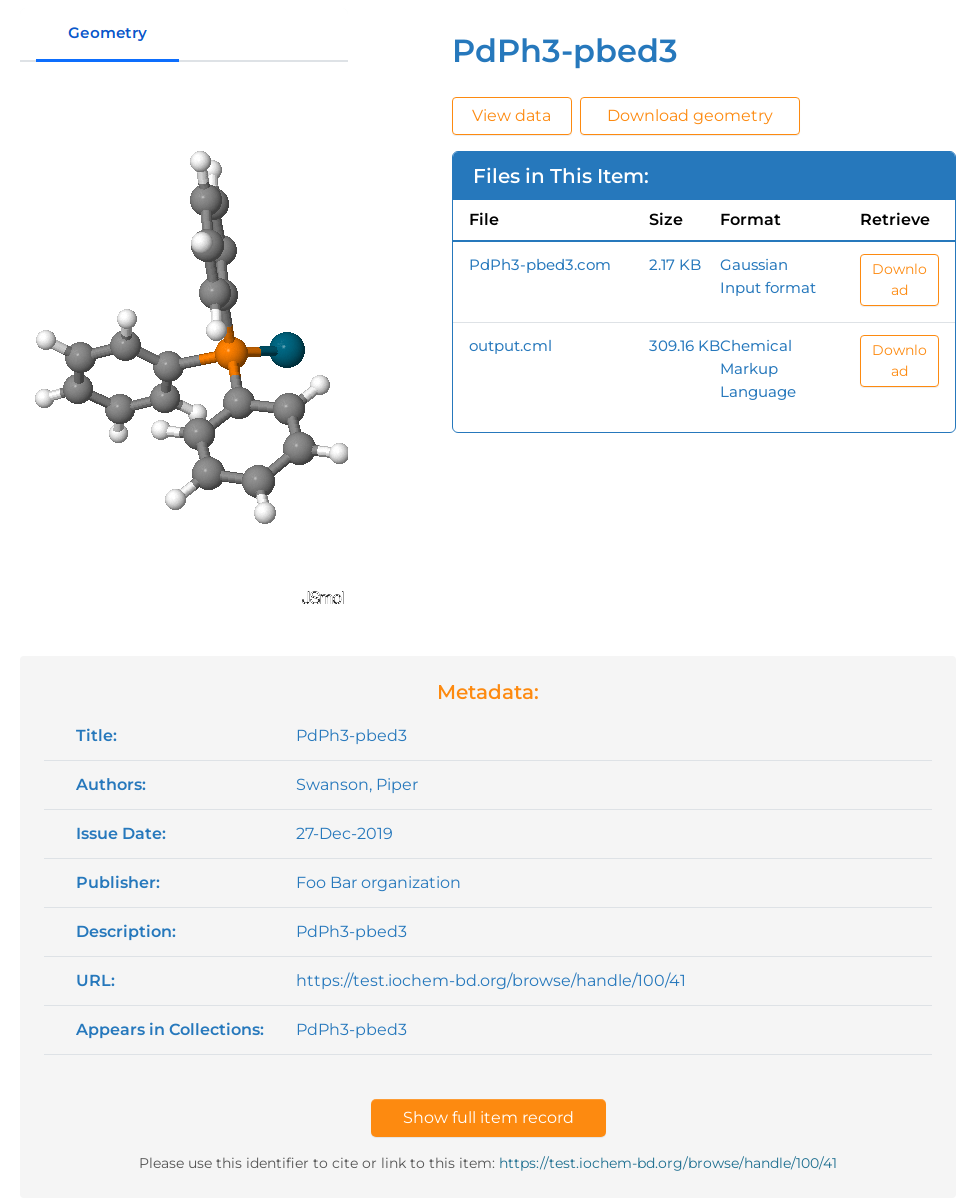
The file section offers chemistry-specific actions:
- View data: opens the full-page CML viewer with an interactive JSmol representation of the molecule or simulation cell.
- Download geometry: downloads the molecular geometry directly.
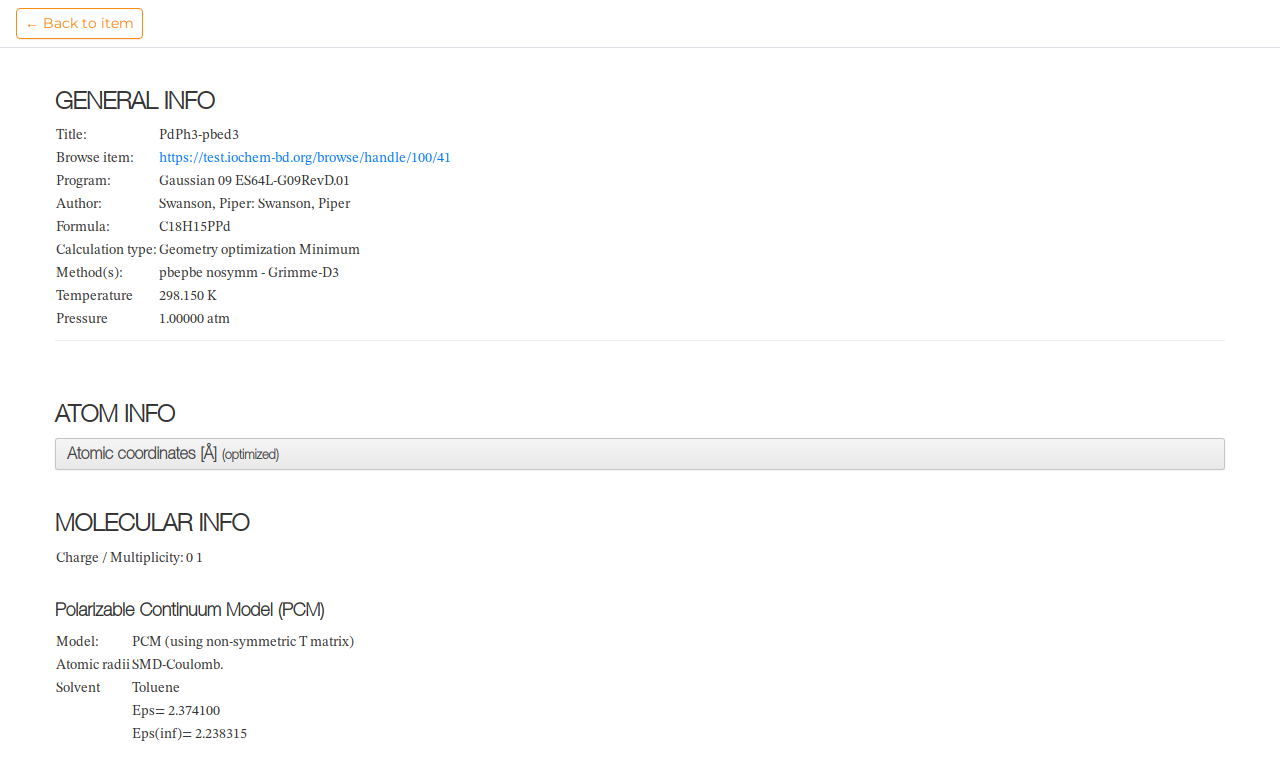
The View data action opens the CML viewer page, where the structure can be rotated, zoomed and inspected with the usual JSmol controls.
Researcher profiles
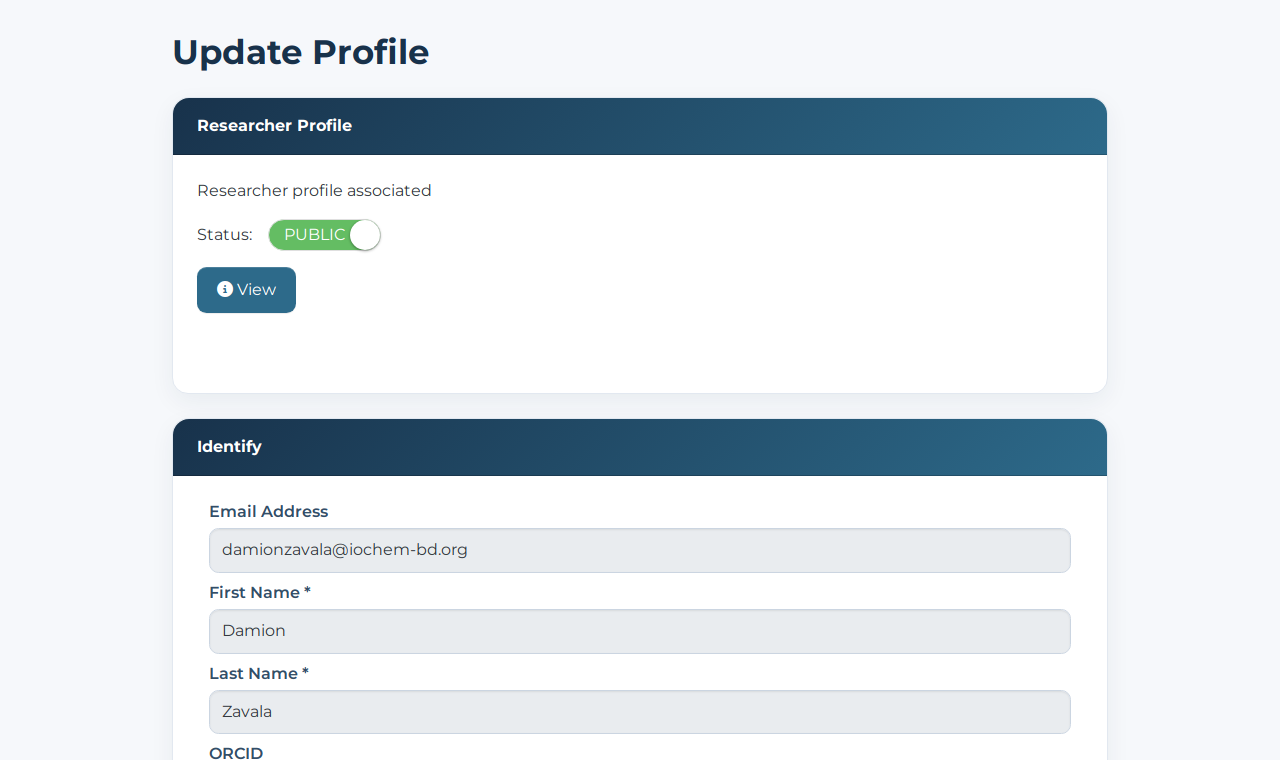
Every ioChem-BD user gets a researcher profile page that groups their published items. Keep your profile complete — ORCID iD and institutional affiliation — from the Profile page after logging in; this improves researcher identification and makes the portal statistics more accurate.
MyDSpace
After logging in, the MyDSpace area shows your own workspace: the items you have published or that are being processed, with quick access to their management.
Statistics
The Statistics section aggregates usage statistics of the portal: total visits, most viewed collections and items, and per-community usage over time.